Translate
Add translated copies of a slide, a range or the whole deck in any language, next to the originals.
Translate adds translated copies of your slides in any language. The originals stay as they are, and the copies keep their layout and formatting.
Where: Home → Translate in the offgen add-in · Who: all members
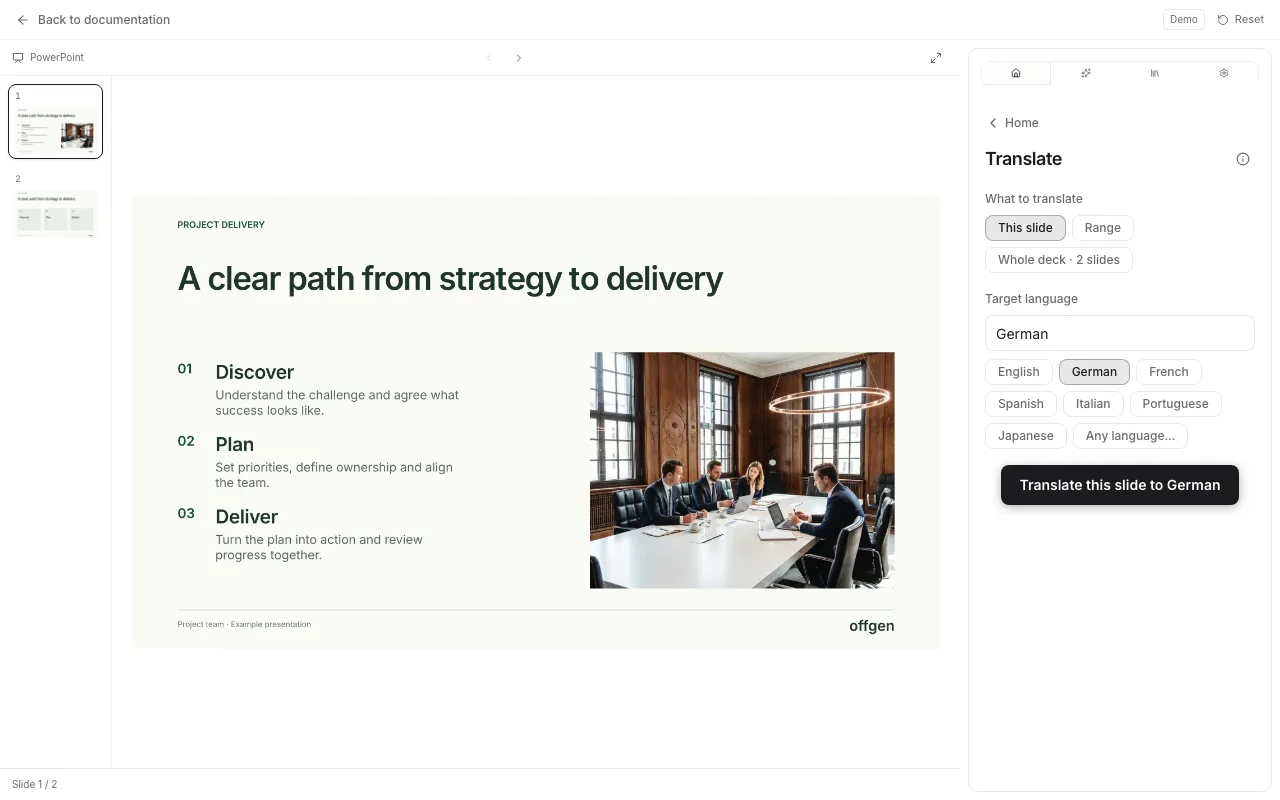
Translate slides
- To translate one slide, select it. Then choose Home → Translate.
- Under What to translate, choose This slide, Range or Whole deck. For a range, enter the first slide under From and the last under to.
- Under Target language, pick a language or type any other, including regional variants such as Swiss German or Brazilian Portuguese.
- Choose the button below. It names what you picked, for example Translate this slide to German.
- Wait while offgen adds the copies (Translating… 3/8).
Where the copies go
- This slide: the translated copy goes right after the slide.
- Range and Whole deck: the copies go after the last slide you chose, in the same order. For the whole deck, the translated deck follows the original.
Each copy uses the same layout and master as its source.
What is translated
- Text in text boxes, placeholders and grouped shapes
- Table cells
- SmartArt
- Chart text such as titles and labels
Speaker notes stay in the original language.
Translate takes no instructions. Translated text is often longer, so check that it still fits its box. To keep certain terms in the original language or to shorten text, ask the AI Agent instead, for example with Translate slides with fixed terms. The AI Agent changes the slides themselves rather than adding copies.
Related
- AI Agent: translate with fixed terms or in place
- Which tool should I use?: Translate or the AI Agent
- Try Translate in the demo: open Home → Translate on a sample deck
Questions? support@offgen.ai