AI Alternative
Select a slide and get other designs for the same content, from your library and as AI pictures. No prompt needed.
AI Alternative shows the selected slide in other designs, for example a process diagram instead of a bullet list. offgen reads the slide and suggests matching templates from your library and new AI pictures. You don't need a prompt.
Where: Home → AI Alternative in the offgen add-in · Who: all members
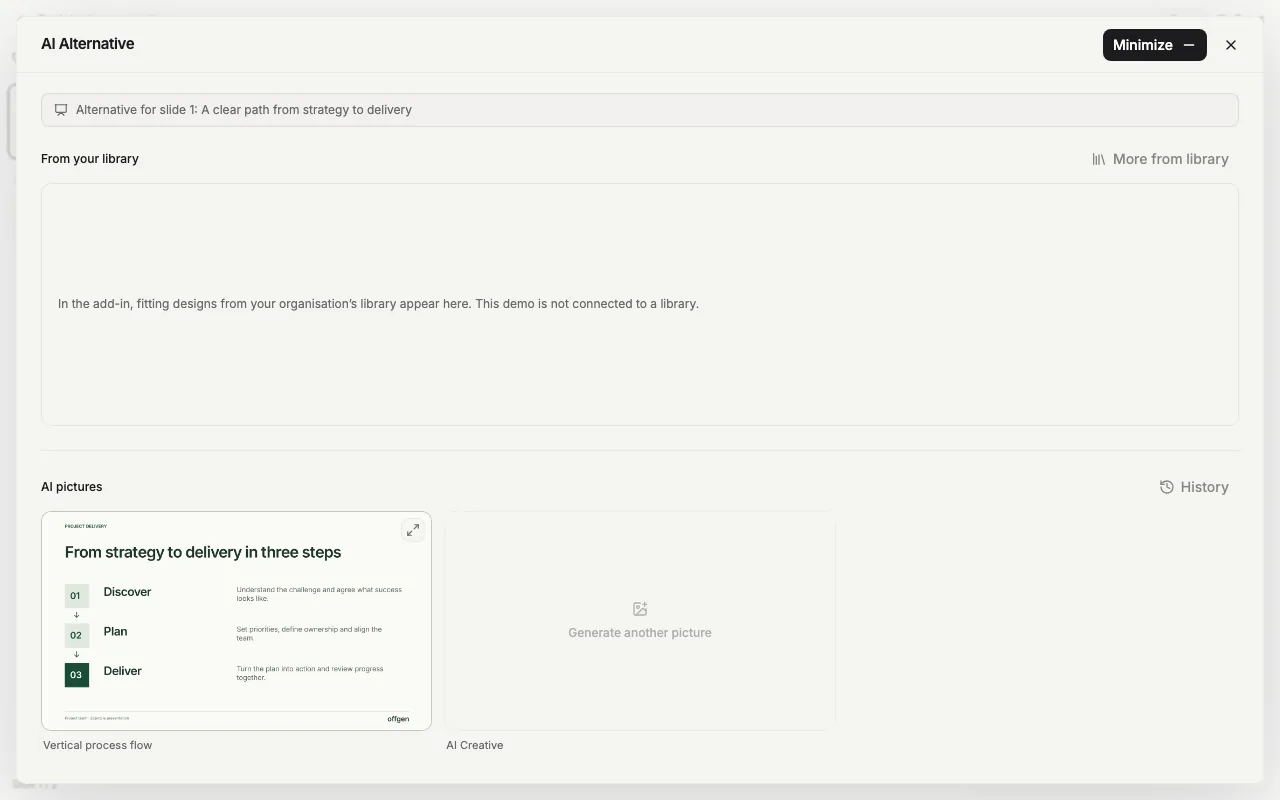
Get alternatives for a slide
- Select a slide with text on it, then choose Home → AI Alternative. A window opens.
- Suggestions appear in two sections, From your library and AI pictures. A countdown shows when the pictures will be ready.
- For a library match, select it to see it larger, then choose Insert slide.
- For an AI picture, select it to open it in the chat, then choose Insert as editable slide. You can ask for changes in the chat first.
A new design can shift the emphasis, and AI pictures can reword text. The editable slide is rebuilt from the picture, so it can differ from the preview. Check the reading order, wording, figures and chart data before you use it.
What you get
| Section | What offgen does | Your content |
|---|---|---|
| From your library | Picks templates from your organization's template library that fit the slide's structure and fills them with your slide's text. More from library shows more matches. | Keeps your wording. The slide is inserted with the insert mode you last used in the Template Library. |
| AI pictures | Writes two new versions of the slide and draws them on the current layout as picture previews. Insert as editable slide rebuilds the chosen one as a native slide in the background. | Keeps the message, facts, figures, names and quotes. Wording and grouping can change. |
Library matches come only from templates you can access. If none fit, the window says "No fitting designs were found in your library for this slide." A slide without text can't be redesigned; use AI Creative and describe the content instead.
Ask for another direction
- Generate another picture opens a chat with your slide's text. Describe the design, for example "as a timeline with icons". Ideas: prompt library.
- Select an AI picture to continue it in the chat, and say what should change. Back to alternatives returns to the overview.
- History opens My Generations, every slide picture you generated in AI Alternative and AI Creative. Insert one again or choose Continue in chat.
- Minimize keeps the pictures generating while you use PowerPoint. The session waits as a bubble at the bottom right of the task pane; select it to reopen.
Related
- AI Creative: design a slide that doesn't exist yet
- Which tool should I use?: AI Alternative, AI Creative or the AI Agent
- Try AI Alternative in the demo: sample alternatives, no install
Questions? support@offgen.ai