Images, icons and logos
Search or generate images, icons and company logos in the add-in and place them on the selected slide.
Five Home tools put pictures on your slide: search your company's images and icons or online sources, find a company's logo, or generate a new image or icon from a prompt.
Where: Home in the offgen add-in, under Tools · Who: all members
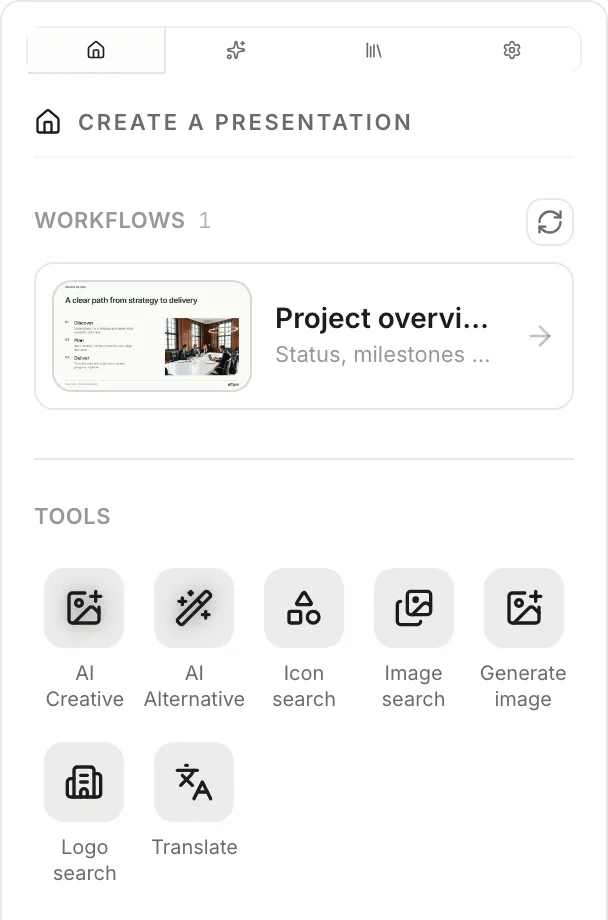
Each tool inserts on the slide that is selected in PowerPoint. Select the slide first. Logo search, Generate image and Generate icon are hidden in new organizations until an Admin turns them on; see Choose what the add-in shows.
Icon search
- Open Home → Icon search. With an empty search field you see your organization's uploaded icons.
- Type in Search icons….
- Pick a color next to the search field: your brand colors, the deck's theme colors or a gradient.
- Select an icon. offgen inserts it on the slide as a vector graphic in the chosen color.
Image search
- Open Home → Image search.
- Choose a source:
- Company: images your organization uploaded to the Library.
- Online: stock photos and illustrations. Narrow them with All, Photos or Illustrations.
- My generations: slide pictures you created with AI Alternative or AI Creative.
- Search, then hover a result and select Insert, or drag it onto the slide.
If the slide has an empty picture placeholder, the image fills it. Otherwise offgen adds it as a picture and keeps its proportions.
Logo search
- Open Home → Logo search.
- Type a company name or domain in Company name or domain…. If nothing turns up, try the full domain, for example
nike.com. - Pick the variant that suits your slide background and select the plus icon, or drag it onto the slide.
Select More options to load more brands and variants for the same search. Logos are always added as a separate picture, never into a placeholder.
Generate image
- Open Home → Generate image.
- Describe the image you want.
- Choose a Style (Photo, Illustration, 3D render or Minimal) and an Aspect ratio (16:9, 1:1 or 4:3).
- Select Generate. Use Regenerate for another version.
- Select Insert on slide.
Generate icon
- Open Home → Generate icon.
- Describe the icon you want.
- Choose a Style (Outline, Solid or Duotone) and a color.
- Select Generate, then Insert on slide. The icon is inserted as an SVG.
The prompt library has example prompts for both generators.
What your organization controls
Admins set these in Settings at app.offgen.ai:
| Setting | Effect |
|---|---|
| Icon Settings | Icon search uses public Icon libraries or Company icons only. |
| Search Language | The language people search in. Non-English searches are translated to English first. |
| Icon Generation Prompt | Style rules applied to every generated icon. |
| Home tools | Which tools appear on Home. |
To add your own icons and images, upload them to the Library. See Manage templates.
Related
- Template library: insert whole slides instead of single pictures
- AI Alternative: get a new visual version of the current slide
- Prompt library: prompts for generated images and icons
Questions? support@offgen.ai