AI Creative
Describe a new slide or add a screenshot of one, then insert the result as an editable slide in your deck's design.
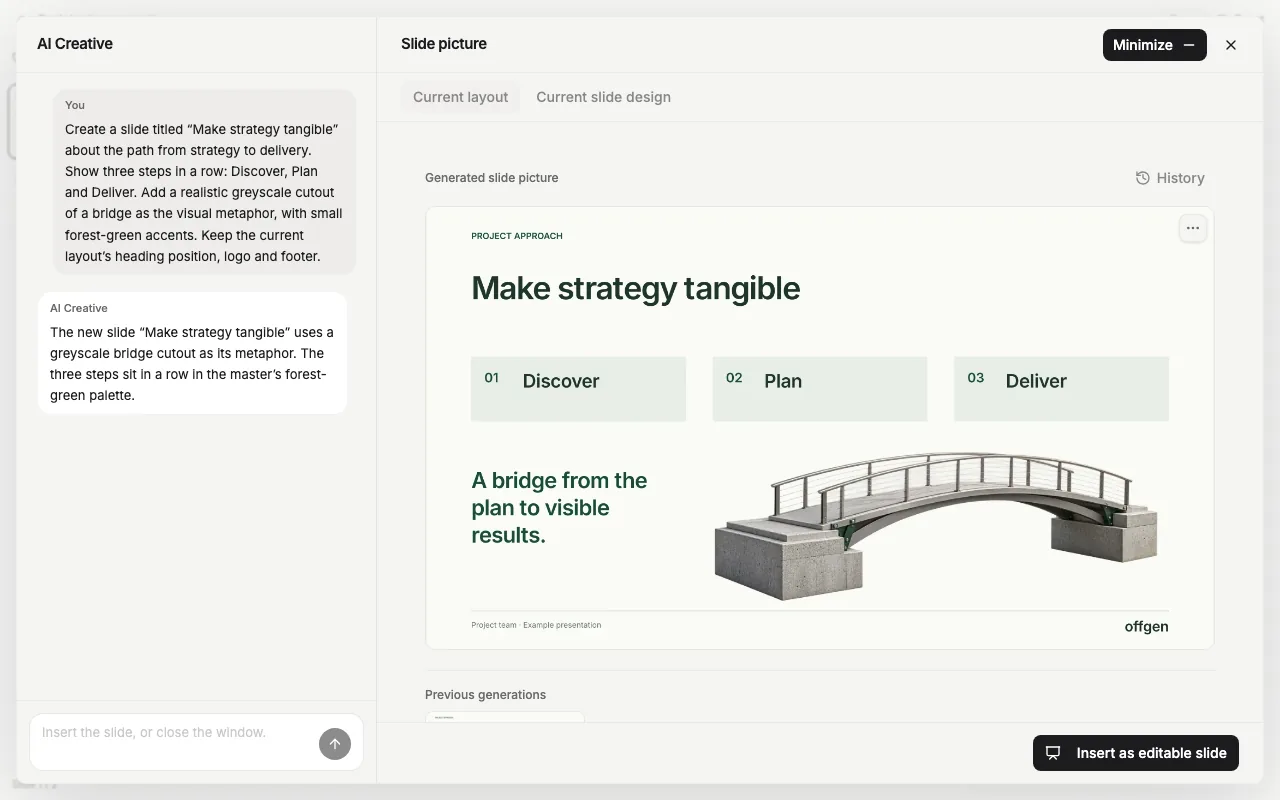
AI Creative designs a new slide on your deck's layout. You describe the slide in a chat, or add a picture of one, offgen draws a preview, and you insert it as an editable PowerPoint slide.
Where: Home → AI Creative in the offgen add-in · Who: all members
Create a slide from a brief
-
Select a slide that uses the layout you want, then choose Home → AI Creative. A window opens.
-
At the top, choose the reference: Current layout (the empty layout with its logo, header and footer) or Current slide design (the look of the selected slide, filled with new content).
-
Describe the slide in the chat: topic, audience, key message and what it must show. For example:
Create a project kickoff slide for the client team. Key message: we agree on the goal before delivery starts. Three steps: agree on the goal, build the team, plan delivery. One short line per step, simple PowerPoint shapes, no photos. -
If offgen asks a question, pick one of the Suggested answers or type your own.
-
Review the preview on the right. Ask for changes in the chat, one per message.
-
Choose Insert as editable slide. offgen rebuilds the picture as a native slide and inserts it after the slide you started from. You can keep working; the progress shows at the bottom of the task pane.
The editable slide is rebuilt from the picture, so it can differ from the preview. Check fonts, line breaks, spacing and figures before you use it. Keep the slide you started from until the new slide is in.
More briefs are in the prompt library. Tips: Write a good prompt.
Rebuild a screenshot or sketch
- Open AI Creative as above.
- Choose Add a picture to rebuild from, or paste or drop a PNG, JPEG or WebP picture into the window. A screenshot, a photo of a whiteboard or a hand sketch all work.
- Choose Rebuild this picture on my slide master, or type what to change and send.
offgen keeps the picture's content and arrangement and uses your master's design. The picture stays attached as a reference for every reply until you choose Remove picture.
Refine and compare drafts
- Previous generations: earlier drafts appear below the preview as Generation 1, Generation 2 and so on. Select one to see it larger.
- Continue: under a generation, choose Continue to build on that draft instead of the latest one. Changes you asked for after it apply only if you repeat them.
- Create a variation: in the larger view of a generation, starts a new conversation from that picture with the current reference. The original conversation is not restored.
- Download PNG: in Picture options (⋯) on the preview, or in the larger view.
- History: opens My Generations, every slide picture you generated in AI Creative and AI Alternative. Open one to insert or download it, or choose Continue in chat to build on it.
- Minimize: keeps AI Creative working while you use PowerPoint. The session waits as a bubble at the bottom right of the task pane; select it to reopen. Sessions end when you close PowerPoint or reload the add-in.
How offgen picks the design
- The reference sets the frame: background, margins, fonts, heading position, logo, header and footer. New content uses the master's theme colors.
- Current slide design works from a picture of the selected slide. If its pictures are too large, offgen asks you to use Current layout instead.
- Design system: if your organization has set up a design system for this master, offgen uses it automatically for colors, typography, imagery and the amount of text.
- Amount of text: offgen chooses it from your brief. Say "image-led, one key statement" or "a detailed process with explanations" to steer it.
- Style: without your own style or a design system, offgen uses a grayscale cutout. Name another style in the chat. Your own style instructions always come first.
| Style | Look |
|---|---|
| Grayscale cutout (default) | A realistic photo subject cut out in grayscale, with a few accents in the master colors. |
| Natural-color cutout | A photo cutout in natural colors, matched to the slide palette. |
| Minimal PowerPoint shapes | A few large flat shapes, even outlines and simple connectors. |
Related
- AI Alternative: new designs for a slide that already has content
- Which tool should I use?: AI Creative, AI Alternative or the AI Agent
- Try AI Creative in the demo: a sample brief, no install
Questions? support@offgen.ai