A Mekko chart (short for Marimekko) is a stacked column chart in which the columns have different widths. The width of each column shows how big a segment is; the height of each block shows the share a player holds in that segment. PowerPoint has no built-in Mekko chart, so you build one in three ways: from native rectangles (fastest for a one-off slide, and the method behind the free template below), from an Excel stacked area chart on a date axis, or with a charting add-in such as thinkcell or Mekko Graphics.
This guide explains how to read a Mekko, when it is the right chart and when it is not, and walks through all three build methods on one worked example.
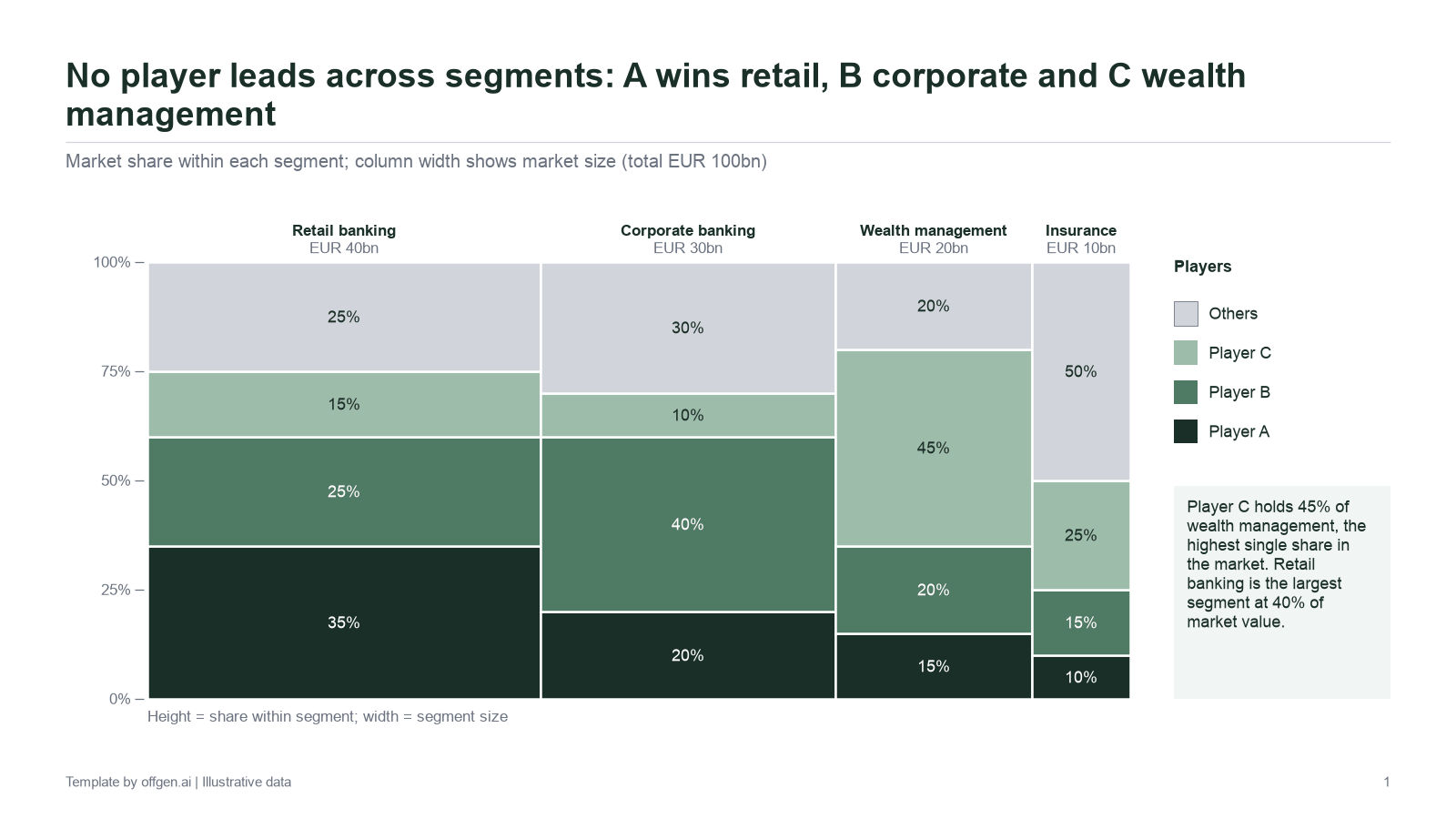
Preview of the free PowerPoint template.
What a Mekko chart shows
A normal 100% stacked column chart answers one question: how is each column split? A Mekko adds a second question: how large is each column in the first place?
- Column width encodes the size of each segment, for example market size in EUR bn. The widths add up to the full chart width, and the columns touch, with no gaps.
- Block height encodes the share of each player within its segment. Every column runs from 0% to 100%.
- Block area is width times height, so it is proportional to the absolute value: a player's revenue in that segment.
That last property is the reason consultants and bankers use Mekkos as market maps. One slide shows where the money is, who holds it, and how concentrated each segment is. thinkcell's manual describes the same mechanics: column widths scaled so the total matches the chart width, no gaps between columns, and segment area proportional to absolute value. Mekko Graphics calls it "a variable width 100% stacked bar chart" and suggests it as a market map by customer, product, region or competitor.
When a Mekko works, and when it does not
| Use a Mekko when | Choose something else when |
|---|---|
| Both segment size and share matter to the argument | Only shares matter: use a 100% stacked column |
| You have roughly three to six segments and players | You have ten or more segments: most blocks become unreadable |
| The message is about where value sits and who holds it | The audience needs exact comparisons between distant blocks: use a table or sorted bars |
| Segments differ clearly in size | All segments are about equal: the width adds nothing |
| A long tail can be grouped into "Others" | Many players each hold 1% to 3%: you get a wall of slivers |
The most common failure is the sliver. A player with a 10% share in a segment that is 10% of the market occupies 1% of the chart area. That block can still carry meaning, but not a label. Plan for it before you build.
How to read a Mekko in four steps
- Read the widths first. Which segments are big? In the example below, retail banking is four times as wide as insurance.
- Read the heights second. Within each column, who leads, and how fragmented is the rest?
- Compare areas for absolute value. A modest share of a wide column can be worth more than a dominant share of a narrow one.
- Look for the pattern across columns. Does one player lead everywhere, or does leadership change by segment? That pattern is usually the action title.
The worked example: a financial services market map
The example is fictional and uses the same numbers as the free template. The market totals EUR 100bn across four segments and three named players (A, B and C) plus Others.
| Segment | Market size (EUR bn) | Player A | Player B | Player C | Others |
|---|---|---|---|---|---|
| Retail banking | 40 | 35% | 25% | 15% | 25% |
| Corporate banking | 30 | 20% | 40% | 10% | 30% |
| Wealth management | 20 | 15% | 20% | 45% | 20% |
| Insurance | 10 | 10% | 15% | 25% | 50% |
Multiplying width by share gives each block's absolute value. This is the check that tells you what the chart will actually say:
| Segment | Player A | Player B | Player C | Others |
|---|---|---|---|---|
| Retail banking | 14.0 | 10.0 | 6.0 | 10.0 |
| Corporate banking | 6.0 | 12.0 | 3.0 | 9.0 |
| Wealth management | 3.0 | 4.0 | 9.0 | 4.0 |
| Insurance | 1.0 | 1.5 | 2.5 | 5.0 |
| Total (EUR bn) | 24.0 | 27.5 | 20.5 | 28.0 |
What the Mekko makes visible:
- Player B leads corporate banking with 40%, the tallest block in the second column, and that single position makes B the largest named player overall at EUR 27.5bn.
- Player A leads retail banking, the widest segment, with 35%. Its retail block alone (EUR 14bn) is the largest block on the chart.
- Player C dominates wealth management with 45%, but the segment is narrow, so C's EUR 9bn there is smaller than A's retail position.
- Insurance is fragmented. Others hold 50%, and the named players' blocks are slivers: Player A's insurance block is EUR 1bn, 1% of the chart area.
A possible action title: "Player B leads the market overall through corporate banking, while insurance remains fragmented." Our action title guide has more on writing titles that state what the chart proves.
Option 1: build the Mekko from rectangles in PowerPoint
This is the method behind the template. Every block is a native rectangle with an exact size and position, so the chart stays fully editable and needs no add-in on the recipient's side.
Step 1: fix the chart area
Decide the plot size first and keep it fixed. This example uses the same plot area as the template: 9.0 in wide and 4.0 in high (22.86 cm by 10.16 cm).
Step 2: calculate widths and heights
Column width = segment size / market total × plot width. Block height = share × plot height.
| Segment | Column width | X position (from left edge) | A height | B height | C height | Others height |
|---|---|---|---|---|---|---|
| Retail banking | 3.6 in | 0.0 in | 1.40 in | 1.00 in | 0.60 in | 1.00 in |
| Corporate banking | 2.7 in | 3.6 in | 0.80 in | 1.60 in | 0.40 in | 1.20 in |
| Wealth management | 1.8 in | 6.3 in | 0.60 in | 0.80 in | 1.80 in | 0.80 in |
| Insurance | 0.9 in | 8.1 in | 0.40 in | 0.60 in | 1.00 in | 2.00 in |
Each column's heights add up to 4.0 in, and the widths add up to 9.0 in. If either sum is off, a share or a size is wrong in the source data, not in the drawing.
Step 3: draw and size the blocks
On the Insert tab, select Shapes and draw a rectangle (Microsoft: Add shapes). Then type the exact values into the Height and Width boxes on the Shape Format tab (called Drawing Tools Format in some Windows versions) instead of dragging (Microsoft: Change the size of a shape). Duplicate the rectangle for each block and change only the values.
Stack the blocks of one column from the baseline upwards in the same player order in every column, and keep Others in the same position each time. A changing order is the fastest way to make a Mekko unreadable.
Step 4: align and group
Select the blocks of one column and use Shape Format > Align > Align Selected Objects, then Align Left so their left edges line up (Microsoft: Align objects). Then place each block exactly on top of the one below, either by dragging until it snaps or by typing the position in the Format Shape pane under Size & Properties. When a column is complete, group it with Shape Format > Group > Group (Microsoft: Group objects), then place the groups side by side at the X positions from the table.
Step 5: label
Add a text box above or below each column with the segment name and size ("Retail banking, EUR 40bn"). Put share labels inside blocks only when they fit at the slide's minimum font size. For slivers, label outside with a thin leader line, or leave them unlabelled and cover them in a footnote.
Limits of the rectangle method. The blocks are not linked to data. When a number changes, you recalculate and resize by hand, which is fine for a one-off market map and painful for a monthly report.
Option 2: build it in Excel with a stacked area chart
Excel has no Mekko either, but a stacked area chart on a date axis can draw one. Jon Peltier documents the technique in his Marimekko Charts article. The idea: use cumulative segment widths as X values, repeat each boundary so the steps are vertical, and let a date axis place the points by value rather than as evenly spaced categories.
Data layout
| X (cumulative %) | Player A | Player B | Player C | Others |
|---|---|---|---|---|
| 0 | 35 | 25 | 15 | 25 |
| 40 | 35 | 25 | 15 | 25 |
| 40 | 20 | 40 | 10 | 30 |
| 70 | 20 | 40 | 10 | 30 |
| 70 | 15 | 20 | 45 | 20 |
| 90 | 15 | 20 | 45 | 20 |
| 90 | 10 | 15 | 25 | 50 |
| 100 | 10 | 15 | 25 | 50 |
Build steps
- Select the table and insert a stacked area chart. Microsoft lists stacked area among the standard Office chart types (Microsoft: Available chart types).
- Right-click the horizontal axis, choose Format Axis, and under Axis Type select Date axis (Microsoft: Display or change dates on a category axis). Microsoft documents date axes for area charts. With a date axis, Excel aligns points with the same X value vertically, which turns each pair of boundary rows into a vertical edge.
- Set the axis from 0 to 100. Peltier notes that a date axis cannot show fractional values, which is why the X values are whole numbers; apply the custom number format
0"%"so they display as percentages. - Copy the finished chart into PowerPoint.
What this method cannot do easily
Peltier's article lists the limits honestly. Each series has one colour across all columns, so colouring individual blocks needs more series. Block labels need helper series and extra formatting. Area blocks cannot be selected one at a time. Rounding can become visible with many columns. Peltier's version also returns each series to zero at segment boundaries to separate the blocks; the simplified table above keeps the layout readable but draws no gap between columns, so add thin white separator lines if you need them.
Option 3: use a charting add-in
If Mekkos are a regular deliverable, an add-in pays for itself in rebuild time.
- thinkcell (written think-cell until September 2026, according to the company) supports two Mekko types: a Mekko with a percent axis, where column widths show column totals, and a Mekko with units, where widths come from an "X extent" row and heights are absolute values. Its manual also describes an "Other" series that collects small segments and a segment order menu for sorting (thinkcell: Mekko charts). See our comparison of thinkcell and offgen.
- Mekko Graphics is a charting add-in that creates charts in PowerPoint and Excel and lists Marimekko and Bar Mekko among its chart types (Mekko Graphics). See our comparison of Mekko Graphics and offgen.
For a wider view of which add-in fits which job, see the guide to PowerPoint add-ins for consultants. Whichever tool draws the Mekko, offgen gets the deck around it into your master: it moves existing slides into your approved master and keeps shapes, charts and tables as native objects (native PowerPoint output).
| Method | Best for | Data link | Effort per update |
|---|---|---|---|
| Rectangles (template) | One-off market maps, files shared with anyone | None | Recalculate and resize |
| Excel stacked area | Teams without add-ins who update the chart regularly | Excel data | Change the table; labels need care |
| thinkcell or Mekko Graphics | Teams producing Mekkos often | Built-in datasheet or Excel | Change the data |
Design rules for a readable Mekko
- Keep segments and players to about six each; group the long tail into Others.
- Use the same player order and colour in every column, with Others in a neutral grey.
- Order columns deliberately, usually by size from left to right, unless a fixed segment order matters to the audience.
- Label each column with its name and absolute size, since the width alone is hard to read.
- Show shares inside blocks only where the text fits at your minimum font size.
- Add thin white separators between blocks so adjacent colours do not merge.
- State the unit, the year and the source in a footnote.
- Do not rely on colour alone: label players directly or add a legend with text. Microsoft's accessibility guidance asks that colour is not the only means of conveying information (Microsoft accessibility guidance).
Common mistakes
| Mistake | Effect | Fix |
|---|---|---|
| Columns of equal width | It is just a 100% stacked column; segment size is lost | Scale widths to segment size |
| Shares in a column that do not add to 100% | Gaps or overflows at the top of the column | Check every column sums to 100% before drawing |
| Player order changes between columns | Readers cannot follow one player across the chart | Fix one order for all columns |
| Too many players | A wall of slivers and labels | Group small players into Others |
| Labels in slivers | Unreadable or overlapping text | Label outside or footnote the values |
| Widths that do not match the stated segment sizes | The chart contradicts its own labels | Recalculate widths from the data, never by eye |
| No source or year | Market map cannot be checked | Add a source footer; see our guide to PowerPoint source footers |
Free Mekko chart template
The template contains the market map from this article, built from native PowerPoint rectangles and text boxes, plus a data slide with the widths and a short how-to. Each segment is a group: click once to select the column, click again to select a single block. To reuse it, update the segment sizes and shares on the data slide, apply the width and height formulas from Option 1, and type the new values into the Height and Width boxes of each block. Check that every column still adds up to the full plot height before you change the labels.
Apply your own master before you reuse it, so colours and fonts follow your template rather than ours.
Build the full market deck in your own master with offgen
A market map is rarely the only exhibit. The strategy or investment deck around it carries sizing tables, share charts, competitor profiles and a source page, and all of it has to follow your master. offgen builds that whole deck for you, directly in PowerPoint.
- Your master on every page. offgen works with your approved master, layouts and templates. Fills, lines and accents follow your brand tokens, so no default colours or drifting chart legends slip into the Mekko or the pages around it.
- Native, editable output. Shapes, charts and tables are real PowerPoint objects that reviewers edit like any other .pptx (native PowerPoint output). A Mekko built from rectangles stays editable block by block.
- Built from approved data and content. offgen creates the deck from your templates, data sources and approved content instead of a blank slide.
- Old slides, new layout. offgen moves existing material into your approved master, so last year's market maps come back on brand.
Cross Consult's Marketing Manager Bianca La Torre needed exactly that: "Right now, my biggest use case is moving old presentations into the new layout." With offgen, the team replaced six location decks with one master workflow (read the Cross Consult story).
For banking and finance teams, the sector view is on our banking page; for consulting teams, see the consulting page. Your next step: book a demo with your master and a real market deck, and see the workflow run on your own template.
For other finance charts, see the companion guides to the waterfall chart in PowerPoint and the football field chart. This article was written by Florian Ploszczyk.
Frequently asked questions
Does PowerPoint have a Mekko chart?
No. Microsoft's list of chart types for Excel, PowerPoint and Word includes stacked and 100% stacked columns, area charts, treemaps and waterfalls, but no Marimekko or variable width column chart. You build it from rectangles, from an Excel area chart on a date axis, or with an add-in such as thinkcell or Mekko Graphics.
What is the difference between a Mekko chart and a Marimekko chart?
None in practice. Mekko is the short form of Marimekko. Both describe a stacked column chart in which the column widths vary as well as the segment heights, so each rectangle encodes two values at once: the size of a segment and the share of one player within it.
What does a Mekko chart show?
Two dimensions in one picture. The width of each column shows how large a segment is, and the height of each block shows a share within that segment. The area of a block is therefore proportional to its absolute value, which is why Mekkos work well as market maps.
When should you not use a Mekko chart?
When you have more than about six segments or players, when many blocks would be thin slivers, or when the audience needs precise comparisons between non-adjacent blocks. In those cases a sorted bar chart or a table with shares and absolute values usually reads faster.
How do you make a Mekko chart in Excel?
Lay out the data with cumulative segment widths as whole-number X values, repeating each boundary so the steps are vertical, insert a stacked area chart, and switch the horizontal axis to a date axis so Excel places points by value. Jon Peltier documents this technique in detail. Labels need extra helper series.
Can I edit the free Mekko template?
Yes. The template is built from native PowerPoint rectangles and text boxes, so every block can be resized, recoloured and relabelled. When the data changes, recalculate the widths and heights with the formulas in this article and type the new values into the Height and Width boxes.
Sources
- 01Available chart types in Office — Microsoft Support. Accessed 20 October 2026.
- 02Add shapes — Microsoft Support. Accessed 20 October 2026.
- 03Change the size of a picture, shape, text box, or WordArt — Microsoft Support. Accessed 20 October 2026.
- 04Align objects on a slide — Microsoft Support. Accessed 20 October 2026.
- 05Group and animate a set of objects — Microsoft Support. Accessed 20 October 2026.
- 06Display or change dates on a category axis — Microsoft Support. Accessed 20 October 2026.
- 07Marimekko Charts — Peltier Technical Services, 2009-02-17. Accessed 20 October 2026.
- 08The new thinkcell logo — think-cell Software GmbH, 2026-09-09. Accessed 20 October 2026.
- 09Mekko charts (user manual) — think-cell Software GmbH. Accessed 20 October 2026.
- 10Marimekko chart — Mekko Graphics. Accessed 20 October 2026.
- 11Mekko Graphics: charts in PowerPoint and Excel — Mekko Graphics. Accessed 20 October 2026.
- 12Make your PowerPoint presentations accessible to people with disabilities — Microsoft Support. Accessed 20 October 2026.
- 13Native PowerPoint output (editable templates) — offgen. Accessed 20 October 2026.
Related articles
Banking & Finance
Waterfall Chart in PowerPoint: Three Ways to Build an EBITDA Bridge, with a Free Template
Read articleM&A & Private Equity
Football Field Chart in PowerPoint: How to Build a Valuation Summary, with a Free Template
Read articleConsulting
Action Titles: 30 Before-and-After Examples for Consulting Slides
Read articleBanking & Finance
Excel to PowerPoint Automation: Editable Charts, Tables, and Source Control
Read article
About the author
Florian Ploszczyk
Co-Founder and COO, MD
Florian writes about consulting workflows, professional presentations, company knowledge, and the controlled adoption of agentic AI.