To make a waterfall chart in PowerPoint 2016 or later, select Insert > Chart > Waterfall, type the start value, each driver and the end value into the chart worksheet, and mark the start and end columns with Set as Total. That takes two minutes. If the deck goes to people on older Office versions, or you need full control over colours, labels and totals, build the chart as a stacked column with an invisible base series instead. That is how the free EBITDA bridge template in this article is built.
This guide covers both methods step by step, when an add-in is worth it, the design rules that make a bridge readable in a committee, and the mistakes that most often make one wrong.
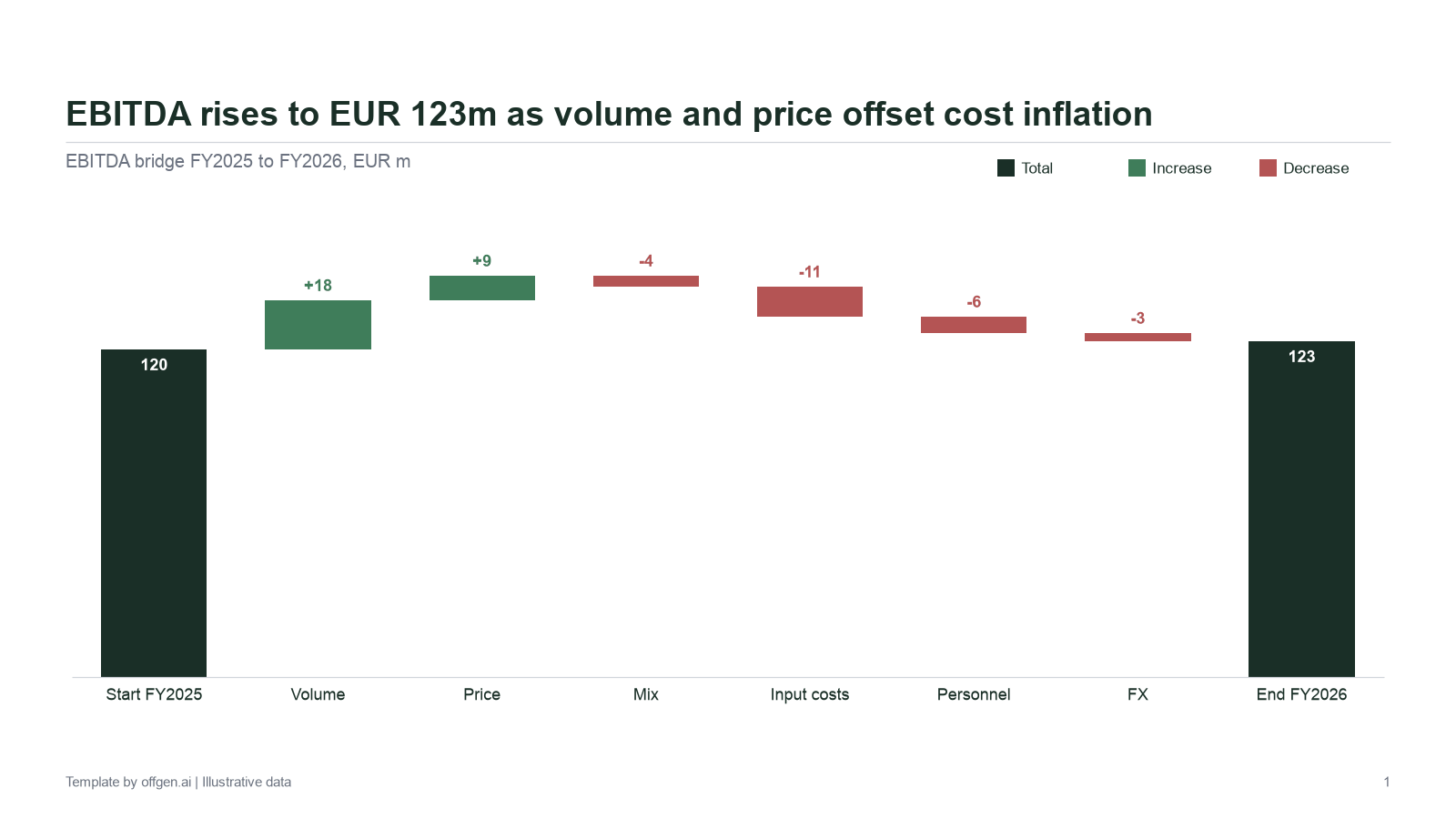
Preview of the free PowerPoint template.
The example used throughout
Every step below uses the same EBITDA bridge from FY2025 to FY2026, in EUR million. The template contains exactly these numbers.
| Item | Change | Running total |
|---|---|---|
| EBITDA FY2025 (start) | 120 | 120 |
| Volume | +18 | 138 |
| Price | +9 | 147 |
| Mix | -4 | 143 |
| Input costs | -11 | 132 |
| Personnel | -6 | 126 |
| FX | -3 | 123 |
| EBITDA FY2026 (end) | 123 | 123 |
The check that matters: 120 + 18 + 9 - 4 - 11 - 6 - 3 = 123. A bridge whose end column does not equal the start plus the drivers is wrong, however good it looks.
Method 1: the native waterfall chart
Microsoft introduced the waterfall chart with Office 2016 as a way to show a running total of financial data (Microsoft 365 Blog). Microsoft's waterfall chart article lists PowerPoint, Excel and Word in Microsoft 365 and in the 2016, 2019, 2021 and 2024 releases.
- Insert the chart. On the slide, select Insert > Chart, pick Waterfall in the chart type list and confirm. PowerPoint opens a worksheet with placeholder data (Microsoft Support).
- Enter the data. Put the labels in the first column and the values in the second: 120, 18, 9, -4, -11, -6, -3, 123. Enter decreases as negative numbers. Close the worksheet.
- Set the totals. Right-click the first column and select Set as Total. Do the same for the last column. Both now stand on the axis instead of floating. You can also tick Set as total in the Format Data Point pane (Microsoft Support).
- Decide on connector lines. Right-click the series, open Format Data Series and toggle Show connector lines.
- Apply your house style. Use the Chart Design and Format tabs. The legend groups the columns into Increase, Decrease and Total; selecting a legend entry selects that whole group, which is the fastest way to recolour it.
Where the native chart runs out
The native chart is the right choice for an internal deck, built once, opened by people on current Office. It gets harder when the bridge becomes a recurring, shared exhibit.
| Requirement | Native waterfall | Stacked column with invisible base |
|---|---|---|
| Speed for a one-off chart | Fastest | Slower, needs helper columns |
| Totals reconciled to drivers | You type totals by hand | End total can be a formula |
| Recipients on Office 2013 or earlier | Not documented for those versions | Uses a classic chart type |
| Other office suites | LibreOffice Calc has an open bug: it cannot display Excel waterfall charts | Classic stacked columns are widely supported |
| Colour logic | Three groups: Increase, Decrease, Total | One series per colour, any logic you need |
| Connector lines | One on or off setting | Not built in; drawn or omitted |
The compatibility row deserves a concrete example. When LibreOffice Calc opens an Excel file with a waterfall chart, the reporter of an open bug (filed in 2018, status still new) sees the fallback message "This chart isn't available in your version of Excel" instead of the chart (The Document Foundation Bugzilla). If you do not control which software your recipients use, test the file in the oldest environment it has to work in, or use Method 2.
Method 2: stacked column with an invisible base
This is the classic build, and it is how the template is made. Every column floats on an invisible "base" series. The visible part is the increase, the decrease or the total.
Step 1: set up the chart data
Select Insert > Chart > Column > Stacked Column. In the chart worksheet, use columns A to E for the plotted series and keep two helper columns to the right, outside the chart range:
- A Label, B Base, C Increase, D Decrease, E Total (plotted)
- G Value (your input: 120, 18, 9, -4, -11, -6, -3, 123)
- H Running total (helper)
Row 2 is the start, rows 3 to 8 are the drivers, row 9 is the end. Use these formulas:
| Cell | Formula | Meaning |
|---|---|---|
| H2 | =G2 | Running total starts at the opening value |
| E2 | =G2 | Start column drawn as a total |
| H3 | =H2+G3 | Running total after the driver |
| B3 | =MIN(H2,H3) | Invisible base: the lower of before and after |
| C3 | =MAX(G3,0) | Visible increase, zero for decreases |
| D3 | =MAX(-G3,0) | Visible decrease as a positive height |
| E9 | =H8 | End column derived from the drivers |
| I9 | =IF(ROUND(G9-H8,1)=0,"OK","Check") | Reported end value against the bridge |
Fill rows 3 to 8 down from row 3. For the example, the plotted values are:
| Label | Base | Increase | Decrease | Total |
|---|---|---|---|---|
| EBITDA FY2025 | 120 | |||
| Volume | 120 | 18 | 0 | |
| Price | 138 | 9 | 0 | |
| Mix | 143 | 0 | 4 | |
| Input costs | 132 | 0 | 11 | |
| Personnel | 126 | 0 | 6 | |
| FX | 123 | 0 | 3 | |
| EBITDA FY2026 | 123 |
The base for a decrease is the running total after the decrease. Mix starts at 147 and ends at 143, so the base is 143 and the visible decrease block covers 143 to 147.
Step 2: hide the base
Click the base series, open Format Data Series, set Fill to No fill and Border to No line. Delete the base entry from the legend, or delete the legend altogether, because labels will carry the meaning.
Step 3: colour and spacing
Give Total your darkest neutral, Increase one colour and Decrease a clearly different one. In Series Options, reduce Gap Width to around 50% so the columns read as a sequence rather than separate bars.
Step 4: labels that show the sign
Add data labels to Increase, Decrease and Total. Zeros in the Increase and Decrease columns would produce stray "0" labels, so give each label set a custom number format in Format Data Labels > Number:
- Increase:
+0;;;shows +18 and hides zeros. - Decrease:
-0;;;shows the positive height 4 as -4 and hides zeros. - Total:
0.
Alternatively, add a label column with formulas such as =TEXT(G3,"+0;-0") and use Values From Cells under Label Options to point the labels at it (Microsoft Support). With every column labelled, the value axis is usually redundant and can go.
Step 5: connectors, honestly
The stacked method has no built-in connector lines. With a narrow gap width and clear labels, most bridges read well without them. If house style requires connectors, drawn lines work but must be rechecked after every data change, because they do not move with the columns. That maintenance cost is one of the main reasons teams buy an add-in.
When the bridge crosses zero
The simple formulas above assume the running total stays positive, which is true for the EBITDA example. When a running total crosses zero, for example a net income bridge that turns into a loss, one invisible base cannot work: stacked columns build positive values upwards from zero and negative values downwards from zero.
Split every driver into a part above zero and a part below zero. With lo = MIN(before, after) and hi = MAX(before, after):
| Series | Formula logic |
|---|---|
| Base | IF(lo>=0, lo, IF(hi<=0, hi, 0)) |
| Above zero | IF(lo>=0, hi-lo, IF(hi<=0, 0, hi)) |
| Below zero | IF(hi<=0, lo-hi, IF(lo>=0, 0, lo)) |
Then use four visible series instead of two: Increase above, Increase below, Decrease above and Decrease below, each taking the "above" or "below" value only when the driver has the matching sign. Give both Increase series the same colour and both Decrease series the same colour. Keep the base as the first series so it always stacks closest to the axis.
Method 3: charting add-ins
If your team builds bridges every week, a charting add-in removes most of the manual work. thinkcell (written think-cell until September 2026) is the best-known example. Its user manual describes totals entered as e that are calculated automatically and kept up to date when the data changes, one connector between each pair of columns that can be dragged to change the calculation, and difference arrows for labelled level changes. It also notes that waterfall charts are "sometimes called bridge charts".
Our comparisons with think-cell and Mekko Graphics show how the two approaches combine: an add-in for chart engineering on a single exhibit, and offgen for the full report or pitchbook around the bridge, built in your master and updated with new figures every period.
| Situation | Best method |
|---|---|
| One internal bridge, current Office everywhere | Native waterfall |
| Shared or client-facing file, mixed software | Stacked column template |
| A house template reused every month | Stacked column template with formulas |
| Many bridges, subtotals, connectors, Excel links | Charting add-in |
Design rules for a bridge that reads in ten seconds
Start and end are totals, in the same colour. They stand on the axis and carry the period in the label: "EBITDA FY2025" and "EBITDA FY2026", not "Start" and "End".
Order drivers by logic, then keep the order. A common sequence is volume, price, mix, then cost lines, then FX and one-offs. Whatever you choose, use the same order every period, so a reader comparing this quarter's bridge with last quarter's compares like with like.
Group the small items. More than seven or eight drivers turns a bridge into a barcode. Combine immaterial items into "Other" and footnote what it contains.
Do not rely on red and green alone. Use signed labels (+18, -11) so the chart still works in greyscale print and for colour-blind readers.
State the unit once. "EUR m" in the subtitle or the axis title, not on every label.
Keep a zero baseline unless you mark the break. In the example, the drivers are small next to totals of 120 and 123. If you truncate the axis to make them visible, show a break on the total columns and keep every value labelled.
Write an action title. The title states what the bridge proves: "EBITDA rises to EUR 123m as volume and price offset cost inflation." A topic label such as "EBITDA bridge" makes the reader do the analysis. Add a source line with the data owner and version, as described in our guide to PowerPoint source footers.
Common mistakes and how to fix them
| Mistake | Why it hurts | Fix |
|---|---|---|
| End total typed by hand | Does not reconcile after a late change | Derive it with a formula, or add a check cell |
| Costs entered as positive numbers | Columns go the wrong way | One sign convention: increases positive, decreases negative |
| Base series visible or labelled | Grey blocks or stray "0" labels | No fill, no line, no labels on the base |
| Drivers reordered every month | Periods cannot be compared | Fix the sequence in the template |
| Simple formulas on a bridge that crosses zero | Columns drawn in the wrong place | Use the above and below zero split |
| Silent axis truncation | Totals look smaller or larger than they are | Zero baseline or a visible break |
| Chart pasted as a picture | Cannot be checked or corrected | Keep a native chart with its data in the file |
The last point is not about aesthetics. A reviewer can open the data behind a native chart and compare it with the source; with an image they can only confirm it looks plausible. Our guide to Excel to PowerPoint automation explains why native objects beat linked charts and pasted images for decks that circulate.
Free waterfall chart template
The template contains the EBITDA bridge from this article as a native PowerPoint stacked column chart with an invisible base series. To reuse it, right-click the chart, open the chart data and replace the values. If you change the number of drivers, extend the formulas from Method 2 so the base, increase, decrease and end total recalculate, and keep the check cell.
Apply your own master before you reuse it, so colours and fonts follow your template rather than ours.
Build every bridge in your own master with offgen
A bridge rarely travels alone. The monthly report around it carries more charts, tables and commentary, and all of it has to follow your master and match the latest numbers. offgen builds that whole deck for you, directly in PowerPoint.
- Your master from the first draft. offgen works with your approved master, layouts and templates, so colours, fonts, chart legends and spacing follow your brand rules instead of PowerPoint defaults.
- Native charts with the data in the file. Every chart and table is a real PowerPoint object that reviewers open, check and edit like any other .pptx (native PowerPoint output).
- Built from approved data. offgen creates the deck from your templates, data sources and approved content, not from numbers retyped by hand.
- Recurring decks rolled forward. Next month, offgen refreshes charts, tables and callouts from the new figures, while formatting and master logic stay intact.
Cross Consult had tried generic AI tools first. Senior Consultant Dr. Tanja Haupt summed up the result: "There are lots of great tools that create beautiful presentations, but unfortunately not in our CI." With offgen, the team replaced six location decks with one master workflow (read the Cross Consult story).
The sector view is on our banking page, the full reporting workflow in our guide to AI for FP&A monthly reporting. Your next step: book a demo and bring a real report and your master. We will show you how offgen turns them into an editable, governed PowerPoint workflow.
For the valuation side of a pitchbook, see the companion guide to the football field chart in PowerPoint; for market size and share on one slide, see the Mekko chart guide; and our overview of AI in banking presentations. This article was written by Florian Ploszczyk.
Frequently asked questions
How do I make a waterfall chart in PowerPoint?
In PowerPoint 2016 or later and Microsoft 365, select Insert > Chart, choose Waterfall, and type the start value, each driver and the end value into the chart worksheet. Then right-click the start and end columns and select Set as Total so they stand on the axis instead of floating.
Which versions of PowerPoint have a waterfall chart?
Microsoft documents the waterfall chart for PowerPoint, Excel and Word in Microsoft 365 and in the 2016, 2019, 2021 and 2024 releases. If your file goes to people on older versions or to other office suites, build the chart as a stacked column with an invisible base series instead.
What is the difference between a waterfall chart and a bridge chart?
There is none in practice. Bridge chart, EBITDA bridge and walk are common finance names for the same chart: a start total, floating columns for each positive or negative driver, and an end total. thinkcell's documentation also notes that waterfall charts are sometimes called bridge charts.
Why does my waterfall chart end total not match the drivers?
Because the native chart does not calculate totals. Set as Total only changes how a column is drawn; the height is the number you typed. Add a check cell that compares the end value with the start plus the sum of the drivers, or build the chart from formulas so the end total is derived.
How do I show a bridge that crosses zero?
In the stacked column method, a single invisible base cannot carry a column that runs from a positive to a negative value. Split each driver into an above-zero part and a below-zero part with separate series and a base of zero for that column. The formulas are in the article.
Should the value axis of a waterfall chart start at zero?
By default, yes, because the start and end columns represent absolute values. If the drivers are small relative to the totals and you truncate the axis, mark the break on the total columns and label every value, so nobody reads a column height as the full amount.
Sources
- 01Create a waterfall chart — Microsoft Support. Accessed 20 October 2026.
- 02Use charts and graphs in your presentation — Microsoft Support. Accessed 20 October 2026.
- 03Introducing new and modern chart types now available in Office 2016 Preview — Microsoft 365 Blog, 2015-07-02. Accessed 20 October 2026.
- 04Add or remove data labels in a chart — Microsoft Support. Accessed 20 October 2026.
- 05Bug 120609: Waterfall chart in Calc does not display + Chart type not available — The Document Foundation Bugzilla, 2018-10-15. Accessed 20 October 2026.
- 06Waterfall charts (user manual) — think-cell Software GmbH. Accessed 20 October 2026.
- 07Native PowerPoint output (editable templates) — offgen. Accessed 20 October 2026.
- 08Banking industry solutions — offgen. Accessed 20 October 2026.
Related articles
M&A & Private Equity
Football Field Chart in PowerPoint: How to Build a Valuation Summary, with a Free Template
Read articleBanking & Finance
Excel to PowerPoint Automation: Editable Charts, Tables, and Source Control
Read articleBanking & Finance
AI for FP&A Presentations: Monthly Reporting Without Broken Numbers
Read articleBanking & Finance
Pitchbook Automation for Investment Banks: Structure, QA Checklist and Workflow
Read article
About the author
Florian Ploszczyk
Co-Founder and COO, MD
Florian writes about consulting workflows, professional presentations, company knowledge, and the controlled adoption of agentic AI.