Harvey balls are small circles filled in quarters (empty, a quarter, half, three quarters, full) that rate options against criteria on a five-level qualitative scale. To make them in PowerPoint, draw an outlined circle, lay a filled Pie shape of the same size on top, set its yellow handles to the level you need, then centre and group the two shapes. The faster alternative is to type the Unicode characters ○ ◔ ◑ ◕ ●. Either way, a Harvey ball matrix is only as good as the rubric that defines what each level means.
This guide covers both build methods, how to set up a scoring matrix that survives a sceptical reader, the accessibility points most matrices miss, and a free template with an option evaluation already laid out.
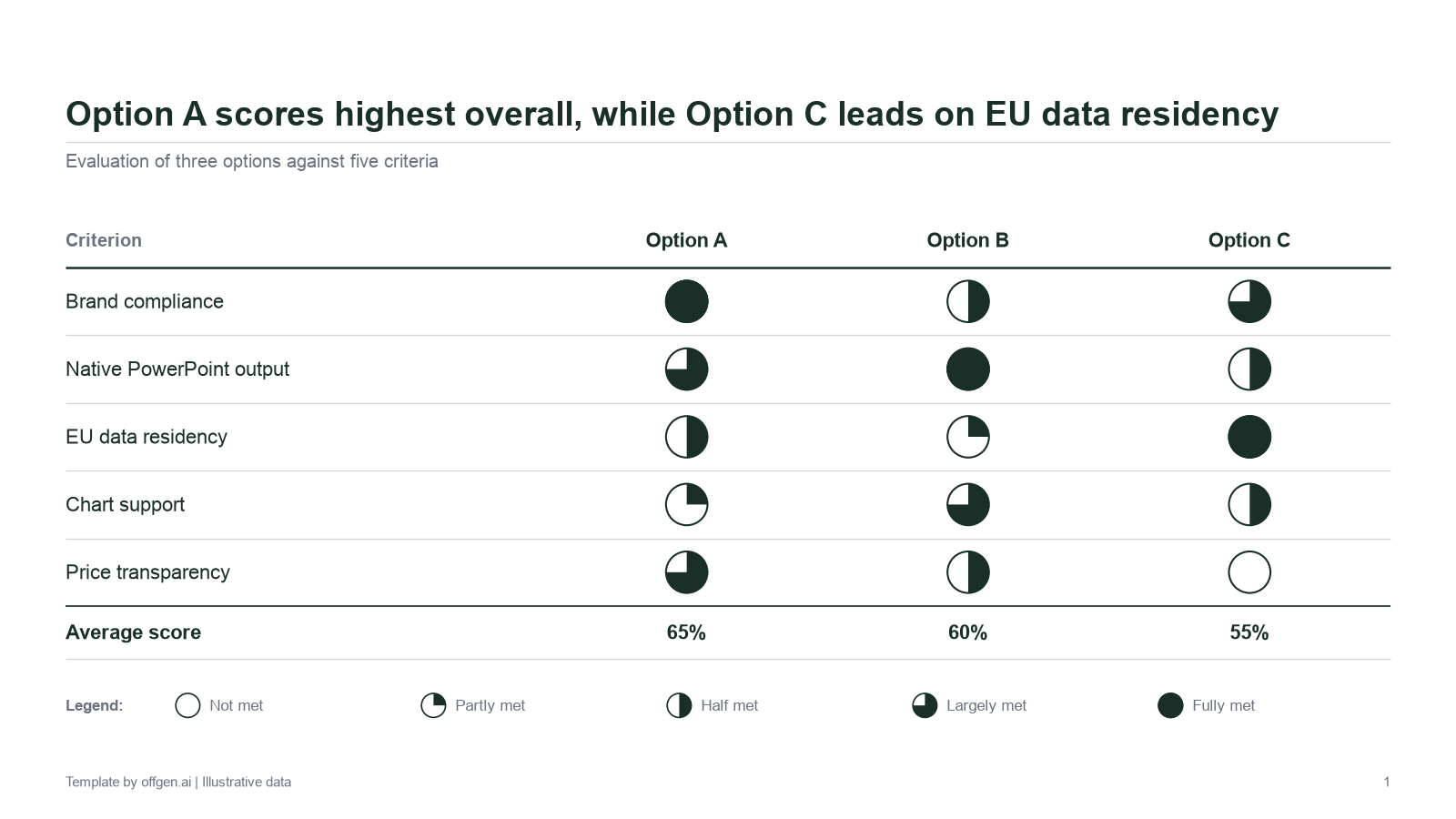
Preview of the free PowerPoint template.
What Harvey balls are
A Harvey ball encodes a level, not a measurement. The convention in consulting decks is five levels:
| Ball | Level | Typical meaning |
|---|---|---|
| ○ | 0 | Not met |
| ◔ | 25 | Partly met |
| ◑ | 50 | Half met |
| ◕ | 75 | Largely met |
| ● | 100 | Fully met |
The numbers are labels for levels. A ◕ does not mean the option is exactly three times better than a ◔. It means it sits two defined steps higher on an agreed scale.
When Harvey balls help
- Vendor and tool evaluations. Several options, five to ten criteria, a recommendation at the end.
- Option assessments. Strategic or operating model options compared on feasibility, cost, risk and time to impact.
- Capability maps. The maturity of a function or team across capabilities, before and after a programme.
- Status overviews. Degree of completion of workstreams, where a percentage would imply false precision.
They work because the eye compares fill levels across a row or column faster than it reads numbers or words.
Where they mislead
False precision. A matrix of neat circles looks analytical even when the scores came from a ten-minute discussion. Readers assume a method that may not exist.
No defined scale. If "half" means "some features" to one evaluator and "works with workarounds" to another, the matrix compares opinions, not options. The fix is a rubric, covered below.
Hidden weights. Readers mentally count full balls. That treats every criterion as equally important, which the decision rarely does.
Accessibility. Quarter and three-quarter balls are hard to tell apart at small sizes, especially for readers with low vision, and grouped shapes mean nothing to a screen reader without alt text. Microsoft's accessibility guidance lists shapes and groups among the visuals that need alt text and asks that colour is not the only means of conveying information (Microsoft accessibility guidance). WCAG makes the same point as Success Criterion 1.4.1 (W3C: Use of Color). Harvey balls already use shape rather than colour, which helps; colour-coding the balls on top (green for full, red for empty) adds nothing for colour-blind readers.
How to make Harvey balls in PowerPoint, step by step
The method below uses native shapes only, so the balls stay sharp at any zoom, can be recoloured to your brand and do not depend on fonts.
Step 1: draw the outline circle (the empty ball)
On the Insert tab, select Shapes, and in the Basic Shapes group choose Oval. Hold Shift while you drag to get a perfect circle (Microsoft: Draw a curve or circle shape). Then, on the Shape Format tab, type the same value into Height and Width, for example 0.4 in, so every ball in the matrix has an identical size.
Set Shape Fill to No Fill and give Shape Outline a dark colour and a weight of about 1 pt. This is your 0 ball.
Step 2: create the full ball
Duplicate the circle and set Shape Fill to the same dark colour. This is your 100 ball.
Step 3: create the quarter, half and three-quarter fills
Insert the Pie shape from Basic Shapes: a circle with a slice missing (Microsoft's object model lists it as msoShapePie, "circle ('pie') with a portion missing" (Microsoft Learn: MsoAutoShapeType)). Shape labels in the gallery differ between Office versions and languages, so hover over the icon and pick the one that looks like a pie with a slice cut out.
Give it exactly the same Height and Width as the circle, set the fill to the dark colour and the outline to No Outline. When the shape is selected, it shows yellow adjustment handles; Microsoft's object model calls these adjustment handles and stores angle adjustments in degrees (Microsoft Learn: Adjustments object). Drag the handles so the filled slice starts at 12 o'clock and runs clockwise to:
- 3 o'clock for 25;
- 6 o'clock for 50;
- 9 o'clock for 75.
Build each of the three once, carefully, and copy them from then on. Dragging by eye for every cell is how a matrix ends up with five slightly different "halves".
Step 4: combine, centre and group
Place a fill shape over an outline circle. Select both, then on the Shape Format tab choose Align > Align Selected Objects, followed by Align Center and Align Middle (Microsoft: Align objects). Make sure the outline circle sits in front so its ring is not cut by the fill. Then group the pair with Shape Format > Group > Group (Microsoft: Group objects).
You now have a set of five grouped balls: 0, 25, 50, 75 and 100. Keep them as a legend row on the slide or in a hidden library slide. With offgen, that approved set becomes part of a governed slide library, so every team reuses it instead of redrawing it, and lockable elements keep it exactly as approved.
Step 5: place the balls in the matrix
Copy the right ball into each cell. Select all balls in a row and use Align Middle, then Distribute Horizontally; do the same per column with Align Center and Distribute Vertically. Microsoft notes that distributing requires at least three selected objects.
Step 6: add alt text and a legend
Add alt text to each grouped ball (for example "Option A, brand compliance: 100") or give the whole matrix one alt text that lists the scores, and place a legend with the five levels and their meaning on the slide. A small numeric score next to each ball (for example "75") is the most robust option: it is readable for everyone, survives printing and conversion, and makes the matrix checkable.
Alternative: Harvey balls as Unicode characters
If the matrix lives in a PowerPoint table, characters are often more practical than shapes, because they stay inside the cell, move with the row and copy into Excel or an email.
| Ball | Character | Code point | Unicode name |
|---|---|---|---|
| 0 | ○ | U+25CB | WHITE CIRCLE |
| 25 | ◔ | U+25D4 | CIRCLE WITH UPPER RIGHT QUADRANT BLACK |
| 50 | ◑ | U+25D1 | CIRCLE WITH RIGHT HALF BLACK |
| 75 | ◕ | U+25D5 | CIRCLE WITH ALL BUT UPPER LEFT QUADRANT BLACK |
| 100 | ● | U+25CF | BLACK CIRCLE |
The characters are part of the Unicode Geometric Shapes block (Unicode code chart). In PowerPoint on Windows, use Insert > Symbol > More Symbols, type the code (for example 25D4) into Character code and make sure from shows Unicode (hex) (Microsoft: Insert a symbol).
Two caveats. First, Microsoft points out that not all fonts contain the same characters; if your corporate font lacks these glyphs, PowerPoint substitutes another font and the balls may look different from the surrounding text, or appear as empty boxes on another machine. Test the file on the devices your readers use. Second, glyph designs differ between fonts, so the size and line weight of ○ and ● may not match. Set all balls in one font that contains the full set and use it consistently.
Build a scoring matrix with a clear rubric
The circles are the last step. The work is the rubric: a definition of what each level means for each criterion, agreed before anyone scores.
The example matrix
The template uses a fictional evaluation of three presentation tools, Option A, B and C, against five criteria:
| Criterion | Option A | Option B | Option C |
|---|---|---|---|
| Brand compliance | ● 100 | ◑ 50 | ◕ 75 |
| Native PowerPoint output | ◕ 75 | ● 100 | ◑ 50 |
| EU data residency | ◑ 50 | ◔ 25 | ● 100 |
| Chart support | ◔ 25 | ◕ 75 | ◑ 50 |
| Price transparency | ◕ 75 | ◑ 50 | ○ 0 |
Define every level per criterion
A generic legend ("half met") is not enough. Write what each level means for each criterion. For two of the five criteria, that could look like this:
| Level | EU data residency | Price transparency |
|---|---|---|
| 0 | No EU hosting option | No pricing information before a sales call |
| 25 | EU storage available, processing outside the EU | Price range given on request |
| 50 | Storage and main processing in the EU, some subprocessors outside | Per-user list price published, add-ons on request |
| 75 | All customer content processed in the EU under contract, support access from outside | Full list pricing published, volume terms on request |
| 100 | Processing, storage and support in the EU, contractually committed, subprocessor list published | All prices, minimums and add-ons published |
These definitions are illustrations, not a standard. What matters is that each step is observable, so two evaluators who read the same evidence land on the same ball.
Make the weighting explicit
Unweighted, the example averages are A 65, B 60 and C 55, so A looks like the winner. Now apply weights:
| Weighting | Brand | Native output | EU residency | Charts | Price | A | B | C |
|---|---|---|---|---|---|---|---|---|
| Brand-led | 30% | 25% | 25% | 10% | 10% | 71.3 | 58.8 | 65.0 |
| Residency-led | 20% | 20% | 40% | 10% | 10% | 65.0 | 52.5 | 70.0 |
With a brand-led weighting, Option A leads. If EU data residency carries 40%, Option C overtakes it, despite scoring 0 on price transparency. Same balls, different decision. That is why the weights belong on the slide, or at least in the backup, and why they should be agreed before scoring starts. For must-have criteria, a separate knock-out check is usually clearer than a weight: an option that fails a hard requirement should not win on points.
For the storyline around the matrix, the slide title should state the conclusion the matrix proves, not "Evaluation overview". Our guide to consulting action titles shows how, and MECE storylining helps check that your criteria neither overlap nor leave gaps.
Common mistakes
| Mistake | Effect | Fix |
|---|---|---|
| No legend | Readers guess what a half means | Legend with the five levels on the slide |
| Levels not defined per criterion | Scores reflect evaluator mood | Rubric table agreed before scoring |
| Balls of different sizes | Fill levels hard to compare | One size, set in Height and Width |
| Halves dragged by eye in every cell | Inconsistent fills | Build each level once, then copy |
| Total of unweighted balls | Implied equal weights | Explicit weights in a separate column |
| Colour on top of fill levels | No gain for colour-blind readers | One colour, meaning in the fill |
| No alt text or numbers | Inaccessible and unverifiable | Alt text, or a small numeric score beside each ball |
| Symbols in a font without the glyphs | Boxes or mismatched circles on other machines | Use shapes, or test the font on target devices |
Before the deck goes out, run it through our consulting presentation checklist; the accessibility and numbers passes cover most of this table.
Free Harvey balls template
The template contains the evaluation matrix from this article and a library slide with all five levels, built from native PowerPoint shapes: each ball is a group of an outline circle plus a pie or a filled circle. To reuse it, replace the criteria and options, copy the ball for the level you need from the library into each cell, and add alt text or numeric scores as described in step 6. Add your own rubric before you score.
Apply your own master before you reuse it, so colours and fonts follow your template rather than ours.
Build every scoring matrix in your own master with offgen
A vendor evaluation or option assessment is more than one matrix. It needs the rubric, the weighting, the evidence pages and the recommendation, all in your house style. Your team owns the scores; offgen builds the deck around them, directly in PowerPoint.
- On-brand shapes, every time. Brand governance keeps fills, lines and accents on your brand tokens instead of default colours, which matters for a matrix built from dozens of small shapes.
- Native, editable matrices. Balls, tables and charts are native PowerPoint objects that reviewers change like any other .pptx (native PowerPoint output).
- Approved legend and rubric, locked. With lockable elements, the approved legend or rubric slide stays exactly as signed off while offgen generates the variable content around it.
- One process for every evaluation. The skill builder turns a proven assessment deck into a reusable process: which parts stay fixed, which adapt, and which sources are allowed.
Bianca La Torre, Marketing Manager at Cross Consult, described the goal: "Ideally, we want a solution that minimises the effort for formatting and CI adjustments, so we can focus on the content." Her team tested four workflows with offgen: offers, offer variants, CVs and info packs (read the Cross Consult story).
For consulting teams, the wider workflow is on our consulting page. Your next step: book a demo with your master and your last evaluation deck, and see the workflow run on your own template.
For a chart that shows size and share instead of a rating, see the companion guide to the Mekko chart in PowerPoint. This article was written by Florian Ploszczyk.
Frequently asked questions
How do you make Harvey balls in PowerPoint?
Draw a circle with Insert > Shapes > Oval while holding Shift, give it an outline and no fill, then place a filled Pie shape of the same size on top and drag its yellow adjustment handles to a quarter, half or three quarters. Centre both shapes with Align Center and Align Middle, group them, and copy the group into your matrix.
What do Harvey balls mean?
They are a qualitative rating scale, usually with five levels: empty, quarter, half, three quarters and full. Each level stands for a defined degree of fulfilment of a criterion. On their own they mean nothing precise, which is why every Harvey ball matrix needs a legend and a rubric that says what each level stands for.
Can I type Harvey balls instead of drawing them?
Yes. Unicode includes white circle U+25CB, circle with upper right quadrant black U+25D4, circle with right half black U+25D1, circle with all but upper left quadrant black U+25D5 and black circle U+25CF. Insert them through Insert > Symbol. Not every font contains these characters, so test the file on the machines of the people who will open it.
Are Harvey balls accessible?
Not by default. Readers with low vision may struggle to tell a quarter from a half, and a screen reader cannot interpret grouped shapes without alt text. Add alt text or a short numeric score next to each ball, include a text legend, and do not rely on colour to separate levels.
Should I add up Harvey ball scores?
Only with explicit weights. Adding up the balls treats every criterion as equally important, which is rarely true. Convert the levels to 0, 25, 50, 75 and 100, agree weights before scoring, and show the weighted result in a separate column so the reader can see how the ranking was produced.
What is the difference between Harvey balls and a traffic light rating?
A traffic light uses colour for three levels and fails for colour-blind readers unless labelled. Harvey balls use shape for five levels, so they survive black and white printing and give finer gradation. Both are qualitative and both need a defined scale.
Sources
- 01Draw a curve or circle shape — Microsoft Support. Accessed 20 October 2026.
- 02Add shapes — Microsoft Support. Accessed 20 October 2026.
- 03MsoAutoShapeType enumeration (Office) — Microsoft Learn. Accessed 20 October 2026.
- 04Adjustments object (PowerPoint) — Microsoft Learn. Accessed 20 October 2026.
- 05Align objects on a slide — Microsoft Support. Accessed 20 October 2026.
- 06Group and animate a set of objects — Microsoft Support. Accessed 20 October 2026.
- 07Insert a symbol — Microsoft Support. Accessed 20 October 2026.
- 08Geometric Shapes, Range 25A0 to 25FF (code chart) — The Unicode Consortium. Accessed 20 October 2026.
- 09Make your PowerPoint presentations accessible to people with disabilities — Microsoft Support. Accessed 20 October 2026.
- 10Understanding Success Criterion 1.4.1: Use of Color — W3C Web Accessibility Initiative. Accessed 20 October 2026.
- 11Brand governance — offgen. Accessed 20 October 2026.
- 12Lockable elements — offgen. Accessed 20 October 2026.
Related articles
Consulting
Action Titles: 30 Before-and-After Examples for Consulting Slides
Read articleConsulting
MECE Storylining for Consulting Presentations: Examples and Checklist
Read articleConsulting
Consulting Presentation Checklist: 40 Checks Before Client Delivery
Read articleConsulting
Mekko Chart in PowerPoint: How to Build a Market Map, with a Free Template
Read article
About the author
Florian Ploszczyk
Co-Founder and COO, MD
Florian writes about consulting workflows, professional presentations, company knowledge, and the controlled adoption of agentic AI.