To check a PowerPoint against your template, compare the file's structure with the approved master rather than its appearance. In about ten minutes you can do it with built-in tools: Slide Master view for foreign masters, the theme colour and font settings, Replace Fonts for fonts in use, the Selection Pane for free text boxes and hidden objects, Reset for local overrides, and the Accessibility Checker for missing titles and alt text. The checklist and severity table below tell you what each finding means and what to fix first.
The reason to check structure is simple. A slide can look on brand and still be broken. A heading retyped in a free text box, a blue that is one shade off the theme colour, or a slide pasted with its source master all look fine on screen. They break when the template is updated, when the deck is reused, or when a screen reader opens the file.
The fastest first step is automatic. Drop the deck into offgen's free PowerPoint template checker and get every finding listed by slide in one report, without uploading the file. Then use the manual steps below to understand and fix what it found.
What "on template" actually means
A deck follows the template when its content inherits from the approved master instead of imitating it. In practice that means five things:
- One approved master. Every slide uses a layout from the current master, with no second master brought in by copied slides.
- Theme fonts and colours. Text and shapes reference the theme's heading and body fonts and its colour slots, rather than fonts and RGB values set locally.
- Placeholders, not text boxes. Titles and body text sit in layout placeholders, so a master update moves and restyles them.
- Readable sizes. Text stays above a minimum size the brand allows, typically excluding only legal small print.
- Accessible structure. Every slide has a title, and pictures have alternative text.
Microsoft describes the slide master as the place where you define fonts, images such as logos and layouts once, so that every slide based on it inherits the change (Microsoft Support: What is a slide master). A compliance check is therefore a check of inheritance.
The 10-minute manual check
Work through these steps in order on a copy of the deck. Menu paths are for PowerPoint for Microsoft 365 on Windows; differences on other platforms are noted where Microsoft documents them.
Minute 1: count the masters
Go to View > Slide Master. The slide master is the larger thumbnail at the top of the left pane, with its layouts indented beneath it (Microsoft Support). Scroll the whole pane.
- A second master, often named after another template or "Custom Design", means slides were pasted with their source formatting.
- Layouts you do not recognise, or several near-identical title layouts, point to the same problem.
Note the master names. You will need them when you fix the deck.
Minutes 2 to 3: compare theme colours and fonts
On the Design tab, open the Variants gallery with the down arrow, then select Colors > Customize Colors. Microsoft explains that theme colours consist of four text and background colours, six accent colours and two hyperlink colours (Microsoft Support: Create your own theme). Compare each slot with the hex values in your brand specification. Close the dialog without saving.
For fonts, go to View > Slide Master, then Slide Master > Fonts. The highlighted entry shows the heading and body fonts of the theme (Microsoft Support: Change the fonts).
If these values differ from the brand specification, the problem is the template itself, not the author. Stop and fix the master first.
Minute 4: list the fonts in use
Go to Home > Replace > Replace Fonts (in the Editing group). The Replace list shows the fonts used in the presentation. Every font other than the two theme fonts is a finding. The same dialog can swap a font throughout the deck, although Microsoft notes that the feature is not available in PowerPoint for the web and that decks with several masters need each master changed separately (Microsoft Support).
Be careful with Replace Fonts as a fix. It replaces a font with another named font, which is still a local setting. The cleaner fix for body text is Reset, described below.
Minutes 5 to 6: inspect objects with the Selection Pane
Open Home > Select > Selection Pane, or press Alt+F10 (Microsoft Support: Selection pane). Walk through the slides that matter most: title, executive summary, key charts.
- Default object names usually reveal the type. Titles and content placeholders carry names such as "Title 1" or "Content Placeholder 2"; a free text box is typically named "TextBox" followed by a number. Renamed objects need a click to confirm.
- Look for hidden objects (the eye icon). Hidden content still travels with the file.
- Look for objects you cannot see on the slide. Zoom out and check the grey area around the slide for shapes parked outside the visible area.
Minute 7: reset suspicious slides
Select a slide that looks slightly off and choose Home > Reset (Slides group). Microsoft states that Reset reverts layout changes and does not delete content you have added (Microsoft Support: Apply a slide layout), and that formatting such as fonts, colours and effects goes back to what the template assigns (Microsoft Support: Accessibility).
Reset is also a diagnostic. If a slide visibly jumps when you reset it, it contained local overrides. If you prefer the overridden look, that is a signal to change the template, not to keep the override. Use Ctrl+Z to undo while you are only inspecting.
Reset only affects placeholders. Free text boxes stay where they are, which makes them easy to spot after a reset.
Minute 8: run the Accessibility Checker
Select Review > Check Accessibility (Microsoft Support). Microsoft's rules classify missing alternative text and slides without titles as errors, reading order as a warning and duplicate slide titles as a tip (Microsoft Support: Rules for the Accessibility Checker).
A missing title often has a template cause: the author used a blank layout and typed a heading into a text box. Fixing the layout fixes both the brand and the accessibility finding.
Minutes 9 to 10: check font sizes and fix with the right tool
PowerPoint has no built-in report of font sizes, which is why the template checker flags every size below 10 pt for you. To spot-check by hand, look at footnotes, chart labels and table text by selecting them and reading the size on the Home tab. Microsoft's accessibility guidance recommends 18 pt or larger for presentation text (Microsoft Support); many corporate templates allow smaller sizes for sources and legal text, so check against your own brand floor.
For individual fixes, Format Painter on the Home tab copies formatting from a correct object to an incorrect one. A single click applies it once, a double click keeps it active for several objects, and Esc stops it (Microsoft Support: Format Painter). It copies local formatting, so prefer Reset or moving text into a placeholder where possible.
What each finding means
| Finding | What it usually means | What breaks later |
|---|---|---|
| Font outside the theme | Text was pasted from another file or formatted by hand | A theme font change will not reach it, and the font may be missing on another machine |
| Hard-coded colour | A fill, line or text colour was set as a fixed value, even if it matches the brand | A theme colour update will not reach it; near-miss shades multiply across decks |
| Text in a free text box | A title or body text was typed outside the layout placeholders | A master update will not move or restyle it; the slide may also lack a real title |
| Foreign or extra master | Slides were pasted with their source formatting | Two designs coexist; new slides may be created from the wrong layouts |
| Unused layouts | The template carries layouts nobody uses, or a pasted master brought its own set | Authors pick the wrong layout; the file grows |
| Font size below the brand floor | Text was shrunk to fit | Readability, and often a sign that the slide needs restructuring |
| Picture without alt text | Images were inserted without a description | Accessibility error; screen reader users miss the content |
| Missing or empty slide title | A blank layout was used, or the title placeholder was deleted | Navigation, outline and accessibility suffer |
| Object outside the slide | A shape was parked on the pasteboard or pushed off the edge | Invisible in the slide show but still in the file, including for reuse |
The last row deserves attention in confidential work. Microsoft even suggests positioning a title off the slide so that screen readers still find it (Microsoft Support). Content placed outside the visible area is not removed. A note from an earlier client version parked off the slide goes wherever the file goes.
Severity: what to fix first
Not every finding deserves the same effort before a deadline. This is a practical ranking for decks that leave the organisation.
| Severity | Findings | Action before sending |
|---|---|---|
| Blocking | Foreign master on client-facing slides, wrong logo or theme colours, confidential content hidden or off-slide | Fix before the deck leaves the team |
| High | Titles and body text in free text boxes on key slides, missing slide titles, pictures without alt text where accessibility is required | Fix on all key slides; fix the rest if time allows |
| Medium | Fonts outside the theme, hard-coded colours, font sizes below the brand floor | Fix where visible; log the pattern for the template owner |
| Low | Unused layouts, many different font sizes, minor reading order warnings | Clean up in the next template revision |
Adjust the ranking to your context. For a regulated document, a missing disclaimer belongs in the blocking row; for an internal working session, most medium findings can wait.
The checklist
- View > Slide Master shows exactly one approved master, with no foreign or duplicate masters.
- Theme colours (Design > Variants > Colors > Customize Colors) match the brand specification slot by slot.
- Theme fonts (Slide Master > Fonts) match the brand heading and body fonts.
- Replace Fonts lists no fonts other than the theme fonts, or each exception is approved.
- Key slides use title and content placeholders; no titles or body text sit in free text boxes.
- Reset does not visibly change key slides, or the changes are intended and approved.
- The Selection Pane shows no hidden objects and no shapes outside the slide area.
- The Accessibility Checker reports no missing slide titles and no pictures without alt text.
- Footnotes, chart labels and table text respect the brand's minimum font size.
- Logo, legal notices and page numbers come from the master or layouts, not from copied shapes.
Faster: the free offgen template checker
The manual check works, but it relies on clicking through every slide, and some findings (hard-coded colours in particular) are hard to see by eye. offgen's free PowerPoint template checker automates the same categories. It runs locally in your browser: the file is analysed on your device and is not uploaded.
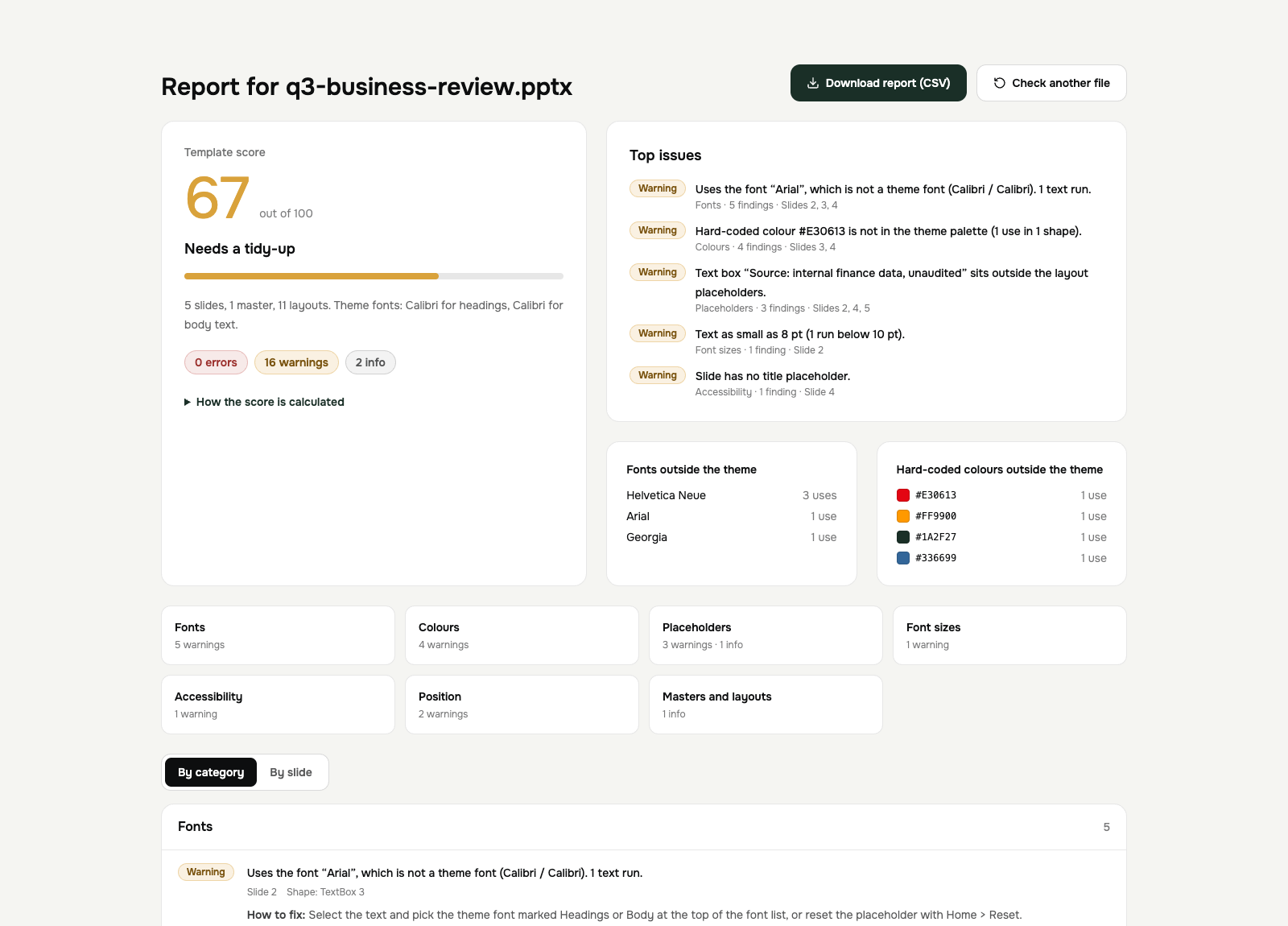
The checker reads the .pptx file itself rather than a rendering and reports:
- fonts that are not part of the theme;
- hard-coded colours outside the theme colour slots;
- text placed outside placeholders;
- font sizes below 10 pt;
- pictures without alt text;
- missing slide titles;
- shapes partly or fully outside the slide bounds;
- multiple masters and unused masters or layouts;
- optionally, differences against a reference template you load alongside the deck.
Findings name the affected slide and, where it applies, the object as it is named in the Selection Pane, so you can jump straight to it. The result is summarised as a score from 0 to 100, and the findings can be exported as CSV for the template owner or a review log.
The checker reads the file; judgement stays with your reviewers. Whether a chart is correct or a logo is the current version for a given market is their call. Approved wording and logos are exactly what offgen lockable elements take off their list, because offgen reproduces locked content exactly in every deck it creates.
Prevent instead of check
A check finds defects after they exist. The more reliable approach is to make the defects hard to create in the first place.
- Put fixed elements on the master. Logos, legal notices and page numbers placed on the master or layouts cannot be accidentally edited in Normal view, as Microsoft notes (Microsoft Support). The guide to locking a PowerPoint slide master covers every native method and what each does not prevent.
- Give authors a better source than old decks. Most foreign masters arrive through copied slides. A maintained library of approved slides removes the reason to copy; see consulting slide library best practices.
- Govern generation, not only review. If slides are created by an AI tool, the tool should fill your placeholders with native objects rather than drawing new boxes on top. offgen editable templates work exactly this way. The article on editable AI PowerPoint output explains what to test in any tool.
The wider operating model, including who owns exceptions and what to measure, is in the PowerPoint brand governance guide.
Never run this check again with offgen brand governance
The checker tells you what went wrong. offgen makes sure it does not go wrong: teams and AI agents create presentations directly from your approved master, and offgen catches the findings from the table above before a deck is exported.
- Your master becomes the rulebook. offgen reads typography, colours, spacing, bullet styles and layout rules from the approved master and applies them to every generated slide.
- Text lands in the right placeholder. offgen fills your existing layouts with native, editable objects instead of layering text boxes on top, so the next master update reaches every slide.
- Deviations stop before export. With brand governance you decide which issues block generation, which raise a warning and which offgen corrects automatically.
- Approved content stays fixed. Lockable elements keep logos, legal notices, disclaimers and complete slides exactly as signed off.
Cross Consult, a Munich consultancy with six sites, had offgen load its master and brand rules. One master workflow now replaces six location decks. Senior Consultant Dr. Tanja Haupt named the gap it closed: "There are lots of great tools that create beautiful presentations, but unfortunately not in our CI." Read the Cross Consult story.
Manual edits after export follow PowerPoint's own rules, and the free checker stays your quick final pass for those. The consulting industry page shows how firms hold one standard across every practice.
This article was written by Robin Mattis, offgen's CTO, who leads the architecture behind offgen's PowerPoint-native platform.
Frequently asked questions
How do I check if a PowerPoint uses the correct template?
Open View > Slide Master and confirm that the thumbnail pane shows only your approved master and its layouts. Then compare the theme colours (Design > Variants > Colors > Customize Colors) and theme fonts (Slide Master > Fonts) with the brand specification. A second master, unfamiliar layouts or different theme values mean slides were pasted in from another file.
Can PowerPoint check brand compliance automatically?
Not as a single feature. PowerPoint has tools that expose individual problems: the Accessibility Checker finds missing alt text and missing slide titles, Replace Fonts shows the fonts in use, and Reset restores placeholders to the layout. Checks such as hard-coded colours or text outside placeholders need a manual review or a dedicated checker that reads the file.
How do I find fonts that are not in my template?
Use Home > Replace > Replace Fonts. The Replace list shows the fonts used in the presentation. Any font other than your theme heading and body fonts is a candidate violation. Note that the feature is not available in PowerPoint for the web.
What is the difference between a placeholder and a text box?
A placeholder is defined on the slide layout and inherits position and formatting from the master, so it follows a template update. A text box drawn on the slide carries its own position and formatting. It still looks correct today but will not move or restyle when the master changes.
Does the Reset button delete content?
No. According to Microsoft, Reset restores the placeholders of the selected slide to the layout design and does not delete content you have added. Fonts, colours and effects in placeholders go back to what the template assigns. Text boxes you drew yourself are not converted into placeholders.
Is there a free PowerPoint template checker?
Yes. offgen provides a free browser-based PowerPoint template checker. The file is analysed locally in the browser and not uploaded. It reports fonts outside the theme, hard-coded colours, text outside placeholders, small font sizes, missing alt text and titles, off-slide shapes and extra masters, with a score from 0 to 100 and a CSV export.
Sources
- 01What is a slide master in PowerPoint? — Microsoft Support. Accessed 20 October 2026.
- 02Create your own theme in PowerPoint — Microsoft Support. Accessed 20 October 2026.
- 03Change the fonts in a presentation — Microsoft Support. Accessed 20 October 2026.
- 04Apply a slide layout — Microsoft Support. Accessed 20 October 2026.
- 05Use the Selection pane to manage objects in documents — Microsoft Support. Accessed 20 October 2026.
- 06Make your PowerPoint presentations accessible to people with disabilities — Microsoft Support. Accessed 20 October 2026.
- 07Rules for the Accessibility Checker — Microsoft Support. Accessed 20 October 2026.
- 08Use the Format Painter — Microsoft Support. Accessed 20 October 2026.
- 09PowerPoint template checker — offgen. Accessed 20 October 2026.
- 10Brand governance — offgen. Accessed 20 October 2026.
- 11Lockable elements — offgen. Accessed 20 October 2026.
Related articles
Foundations
PowerPoint Brand Governance: How Enterprises Keep Every Deck Compliant
Read articlePowerPoint & Agent Workflows
How to Lock a PowerPoint Slide Master and Protect Logos, Disclaimers and Layouts
Read articlePowerPoint & Agent Workflows
Editable AI PowerPoint: Why Native Slides Matter for Professional Teams
Read articleConsulting
Consulting Slide Library Best Practices: Taxonomy, Ownership, and Reuse
Read article
About the author
Robin Mattis
Co-Founder and CTO, MD
Robin writes about AI architecture, secure data flows, software engineering, PowerPoint systems, and scalable enterprise integrations.