# Template library
Insert approved slides from the Library into your deck, or fill one with new content using AI.
Source: https://www.offgen.ai/docs/library
Find a saved slide, insert it into the open deck, or let offgen fill it with your content. To save slides from your deck or organize the Library, see [Manage templates](/docs/manage-templates).
**Where:** Template Library tab in the offgen add-in · **Who:** all members
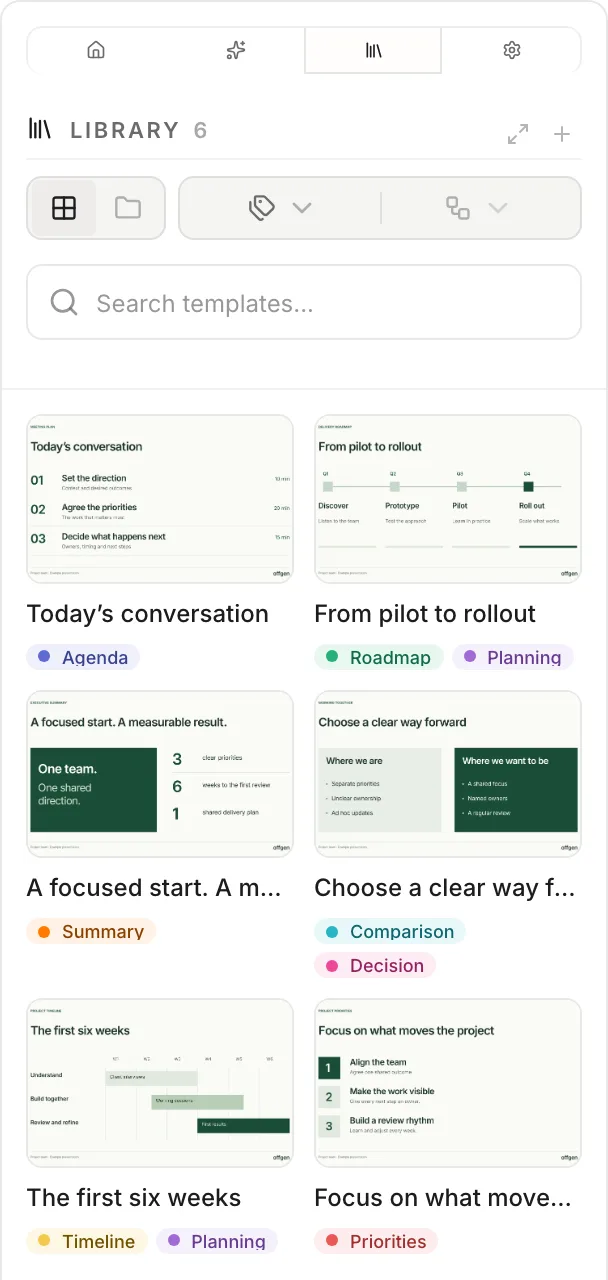 ## Find a template
1. Open the **Template Library** tab in the offgen task pane. The tabs show icons only; the name appears on hover. On **Home**, **Library** opens the same tab.
2. Choose **Org** for your organization's templates or **My** for your own.
3. Type in **Search templates...**, or switch from the grid to **Folders** to browse folders.
4. Narrow the list with **Labels** or **Workflows**. The Workflows filter shows the templates a workflow uses.
If the slide selected in your deck came from the Library, a **Current** card shows it at the top. Select **Alternatives** to list other templates with the same label. A template without a label has no alternatives.
## Insert a template
1. Select a template to open it.
2. Select **Insert**. To change how it's inserted, open the arrow next to it:
| Option | What it does |
| ---------------------- | -------------------------------------------------------------------------------------------------------- |
| **Insert** | Inserts the template into the current deck using the current presentation master. |
| **Insert with master** | Inserts the template together with its original library master, so the slide keeps its saved formatting. |
offgen remembers the option you used last.
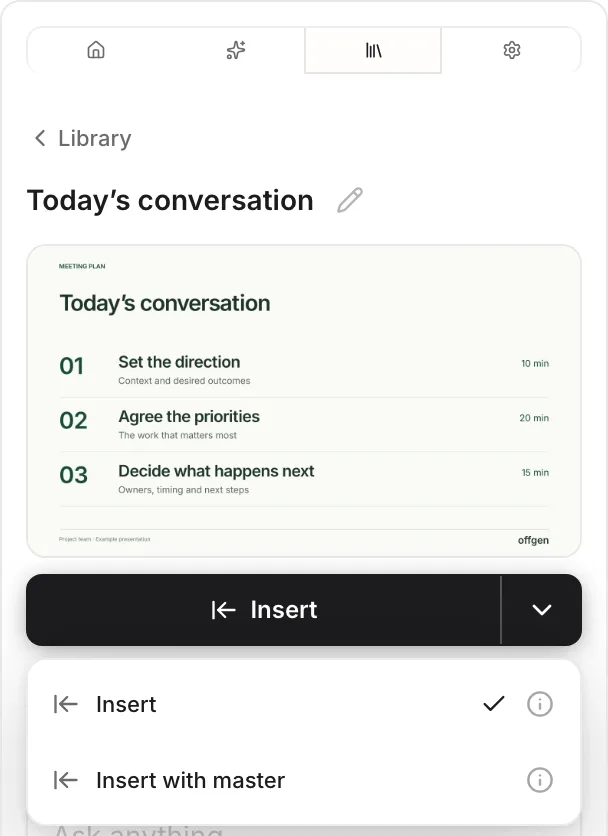 In the same view you can rename the template with the pencil icon or open **View more details on app.offgen.ai**.
## Fill a template with AI
Use a template as the design and let offgen write the content.
1. Open a template.
2. Under **Fill with AI**, describe what the slide should say: topic, key message and the facts to use. You can attach files.
3. Send the message. offgen switches to the [AI Agent](/docs/agent) tab, inserts one slide built on this exact template and fills it with your content.
The [prompt library](/docs/prompt-library#fill-a-library-template) has example descriptions.
## Assemble slides in the large library
For more than a few slides, select **Open large library** (the expand icon next to the Library title). A bigger window opens with the whole Library.
1. Search in **This folder** or the **Entire library**, or browse **My templates**, **Organization templates**, **Workflow templates** and **Template Stacks**.
2. Select templates and choose **Add to basket**.
3. Open the **Slide basket** and arrange the slides in the order they should be inserted.
4. Select **Add slides to PowerPoint**. The button shows how many slides it adds.
To insert a stack, open it under **Template Stacks** and choose its slides. They keep the stack's original order. You can also select templates and choose **Add to PowerPoint** without the basket.
> Slides you insert are normal PowerPoint slides. Changing them in your deck doesn't change the template in the Library.
## Related
* [Manage templates](/docs/manage-templates): save slides from your deck, approvals and SharePoint-synced templates
* [Create a deck from a workflow](/docs/create-from-workflow): build a whole deck from your templates
* [Images, icons and logos](/docs/images-icons-logos): add pictures, icons and logos to a slide